Zen Setup
One-time hardware setup: connecting your Cronus Zen to your console or PC, and getting the firmware current. If your Zen is already wired up and playing, skip straight to Installing Scripts.
Know your ports
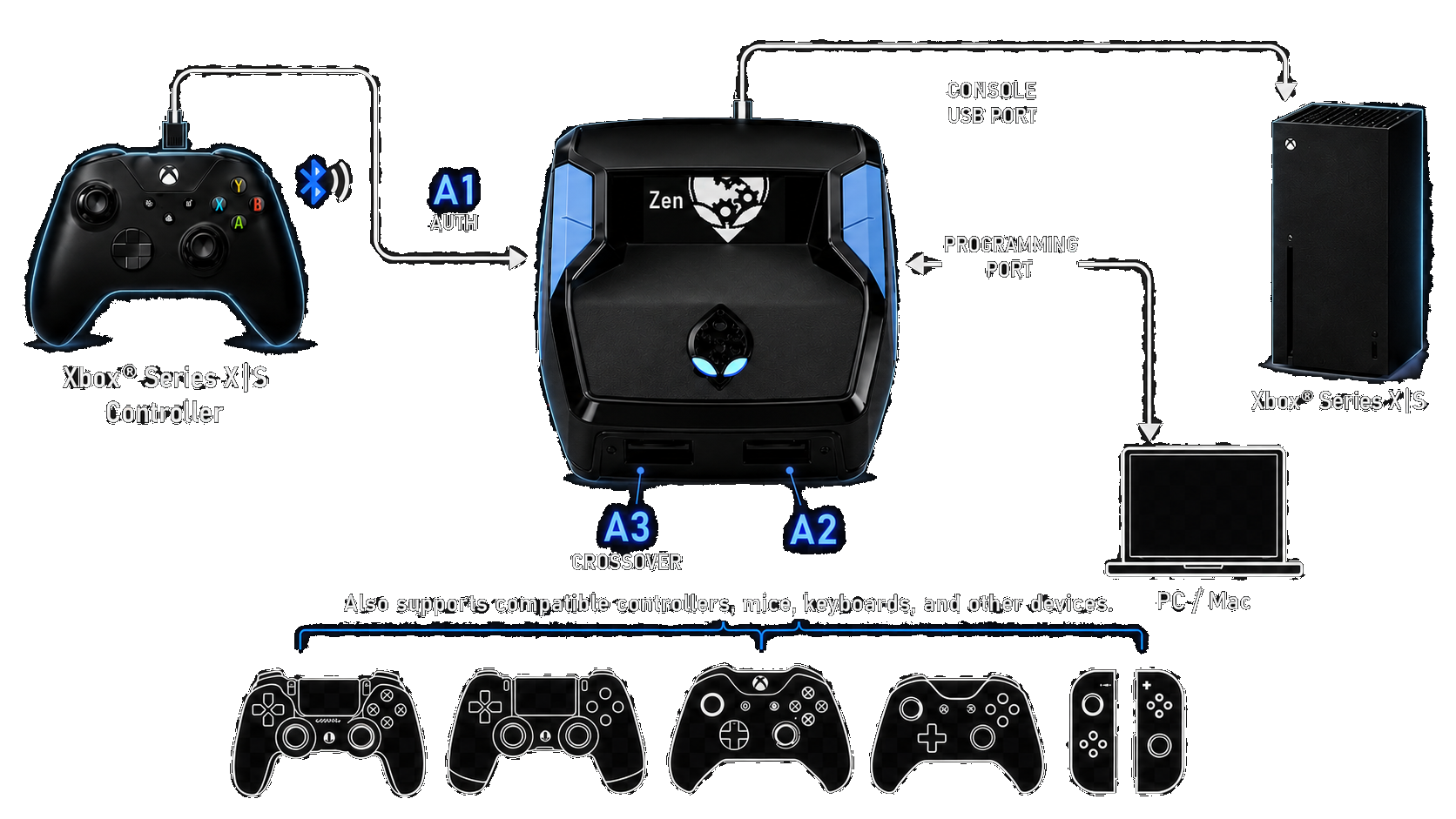
| Port | Where | What it's for |
|---|---|---|
| A1 | Left side | Your controller — always lives here |
| OUTPUT | Top | The cable to your console or PC |
| PROG | Right side | Computer connection for loading scripts through the Programmer |
| A3 | Front | Extra devices (crossover controllers, mouse and keyboard) |
PlayStation 5
Console setting first
On the PS5, set Settings → Accessories → Controllers → Communication Method → Use USB Cable. Your controller has to talk over the wire, not Bluetooth.
The bypass
The PS5 checks what's plugged into it, so the Zen needs a bypass to be accepted. Takes about a minute:
- Plug your controller into the Zen's A1 port (left side).
- Connect the Zen to the PS5 from the OUTPUT port (top).
- Flip through slots until the Zen shows its alien-head screen.
- On the PS5, go to Settings → Accessories → General → Turn Off Accessories and select it.
- Press the blue reset button on the underside of the Zen.
- While the Zen reboots, hold D-pad Right on your controller until the Zen's menu starts cycling rapidly. That's the bypass landing — you're in.
If it doesn't take
Unplug the Zen from the PS5 and run it again from step 2. It sometimes takes a second pass — nothing's wrong with your gear.
Cronus also keeps an official video walkthrough at guide.cronus.support/bypass if you'd rather watch it done.
PlayStation 4
No bypass needed — wire it like Xbox below and play.
Xbox
- Plug your controller into the Zen's A1 port (left side).
- Connect the Zen to the console from the OUTPUT port (top).
That's the whole setup.
Crossover devices
Running a non-Xbox controller, mouse, or keyboard? It goes in the A3 port (front) — but an official Xbox controller still has to sit on A1 to handle authentication. Some GameSir controllers need a firmware rollback for Zen compatibility — Cronus covers it at guide.cronus.support/gamesir-fix.
PC
- Controller into A1 (left side).
- Zen into the PC from the OUTPUT port (top) — and only that port.
Unplug PROG before you play
The PROG port is the programming link. Leaving it connected during gameplay puts the Zen in programming mode and can drop you from your game. Load your scripts, unplug PROG, then play.
Firmware
Our scripts run on firmware 2.3.0 or newer — 2.3.1 is the current release. If your Zen is older than 2.3.0, update it through Cronus's official tools at guide.cronus.support before loading anything.
Loading scripts
With the hardware set, loading is the easy part: connect the Zen's PROG port to your computer, open the Programmer in Chrome or Edge, press CONNECT, then PROGRAM. Close Zen Studio first if it's running — only one program can talk to the Zen at a time. Full walkthrough in Installing Scripts.